 Zinn® Cache
Minify CSS and JavaScript and lazy-load images
Use Zinn® Cache Pro's CSS and JavaScript tab to remove unused CSS and delay scripts, and its Images tab for WebP and AVIF — and how to undo a change that breaks a page.
Test one change at a time
Asset optimisation changes how the browser receives your theme's files. Change one setting, check the site, then move on, so a problem has an obvious cause.
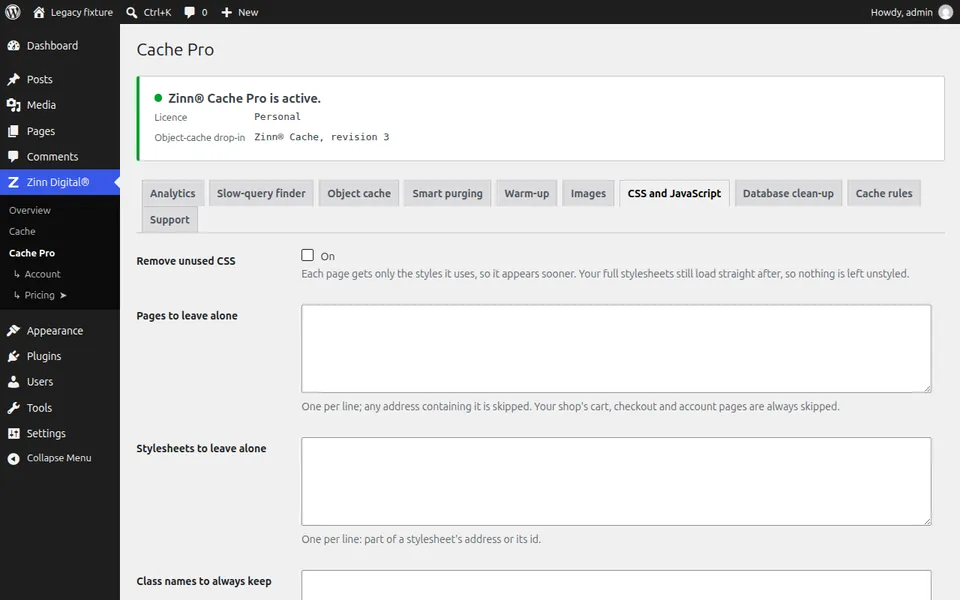
Open the CSS and JavaScript tab
In WordPress open Zinn Digital®, Cache Pro, then CSS and JavaScript. Images are on their own tab.
Start with the safe defaults
Keep Use the safe defaults on. It never delays jQuery or cookie-consent banners and leaves checkout pages alone.
Delay JavaScript, then remove unused CSS
Turn on Delay JavaScript until the visitor interacts, save and check your key pages signed out. Then turn on Remove unused CSS. If something stops working, add its script or stylesheet to the list of files to leave alone.
Serve WebP and AVIF images
On the Images tab turn on WebP or AVIF, then convert your existing images. The originals stay where they are, and one click removes every converted copy.
Next guide: Clean up the WordPress database
Included free with Zinn Digital® hosting
Get Zinn® Cache free on Zinn Digital® hosting
Every WordPress site on our own servers comes with Zinn® Cache installed and connected: the page cache is on, the Redis object cache is managed for you, and plugin updates arrive on their own. Zinn® Cache Pro is not included; add it to any site when you want it.